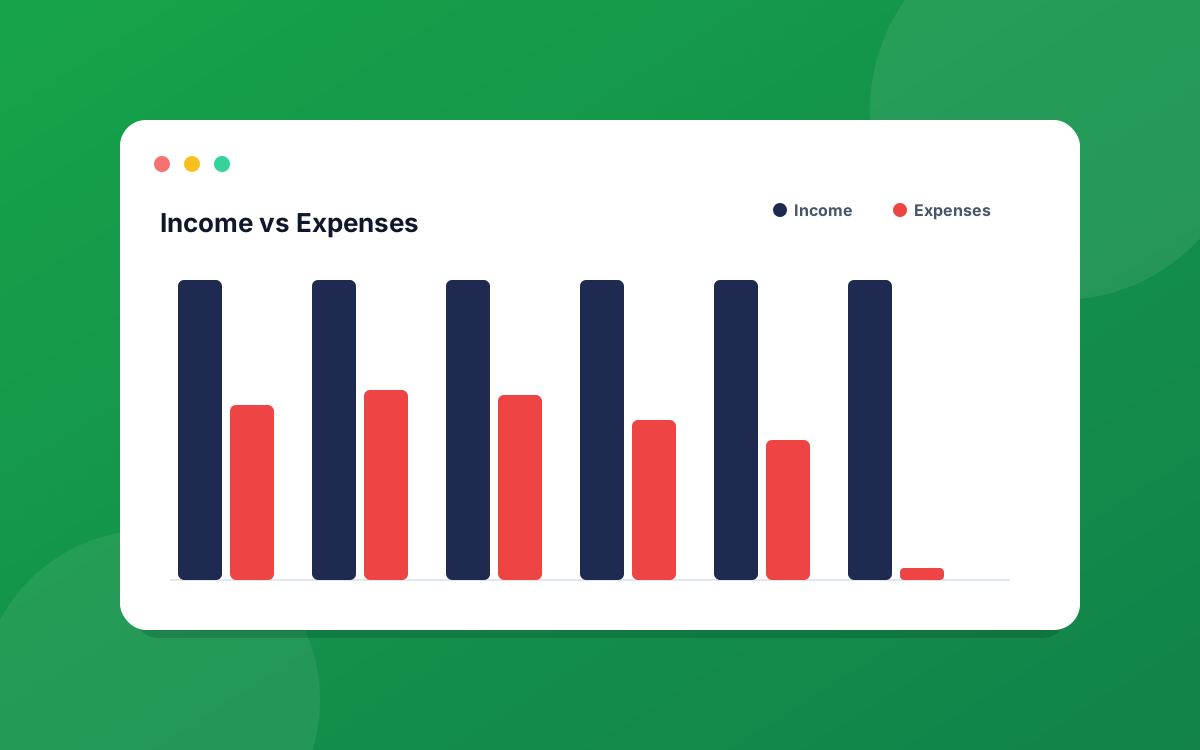
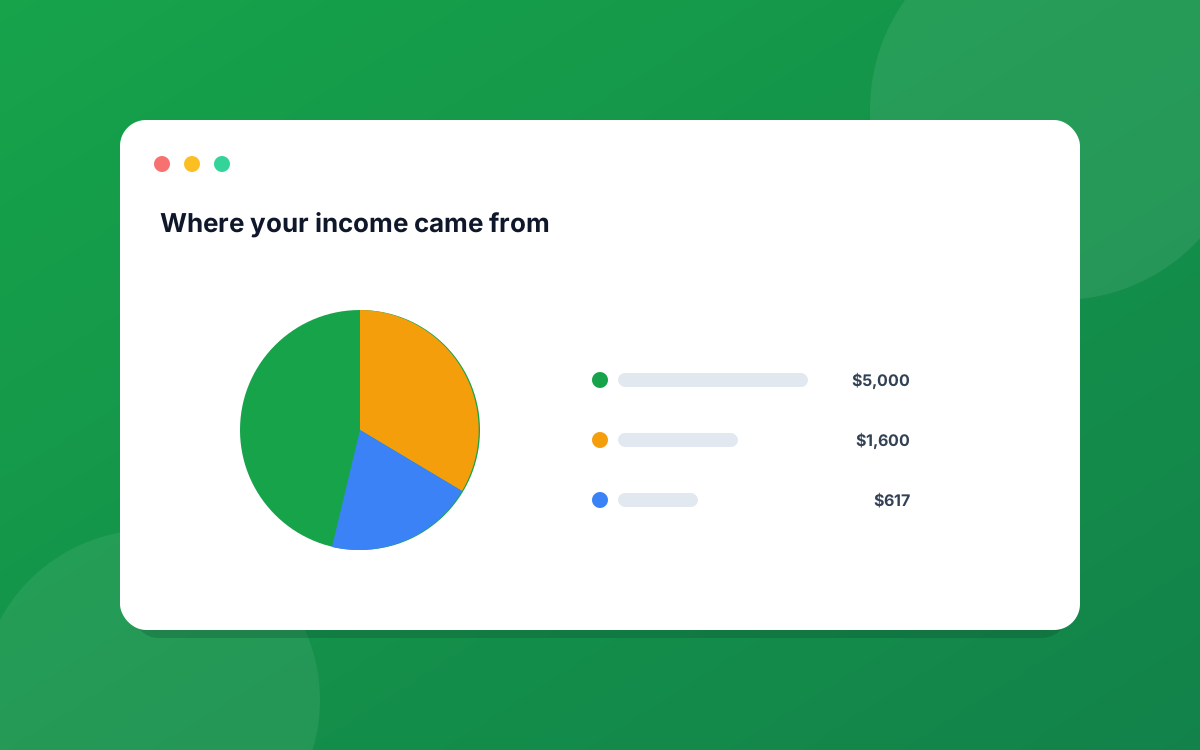
The dashboard is the first screen you see after signing in, and it is designed to be read top to bottom like a short story about your month. The most important answer sits at the very top, and each widget below it adds a layer of detail. This tour walks through every section so you know exactly what each one is telling you.
Start at the top: the filter bar
Before you read a single number, look at the bar across the top. It controls the window that every widget on the page is measured against.
- Period switcher: Weekly, Monthly, Quarterly, or Yearly. Monthly is the default and shows the current calendar month.
- Date range picker: pick a custom start and end (or a preset like Year to date) when you want a window that does not fit the period buttons.
- Action buttons: Add Transaction, Manage Categories, and Budget Settings live here so they are always one click away.
The rule to remember: every figure below updates to match this window. If a number looks surprising, check the period first. You may be looking at a quarter when you expected a month.
On-track banner: am I doing okay this period?
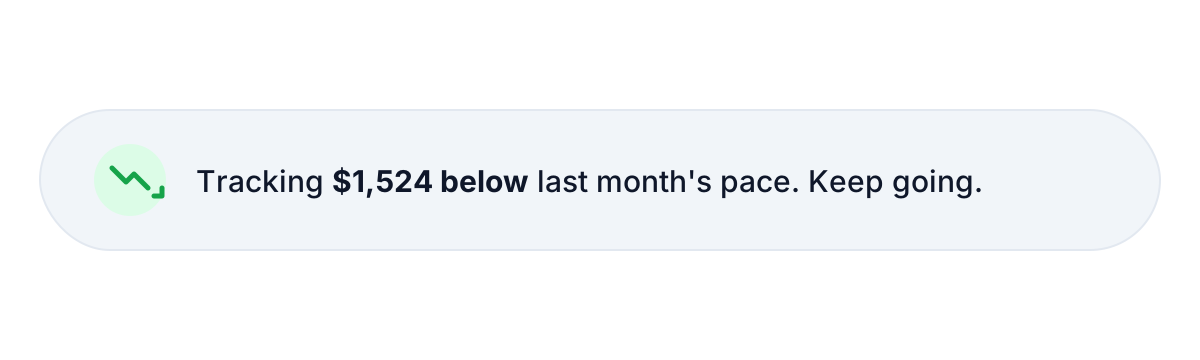
The single status line at the very top answers the question most people open a budgeting app to ask. It takes how much you have spent so far, compares it against the same point in your previous period, and projects where you are likely to land by the end.
It reads as one calm sentence. No emojis, no cheerleading, just a straight answer about whether your current pace keeps you inside your plan.
The hero: Net Savings, Income, and Expenses
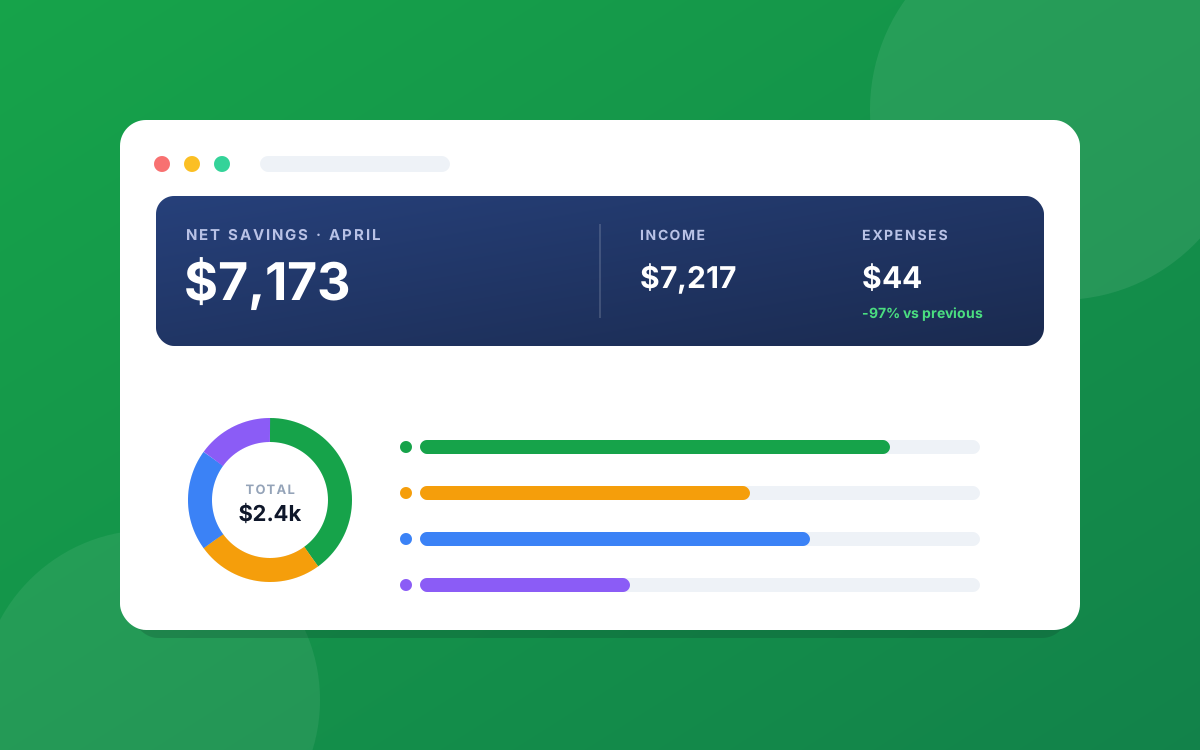
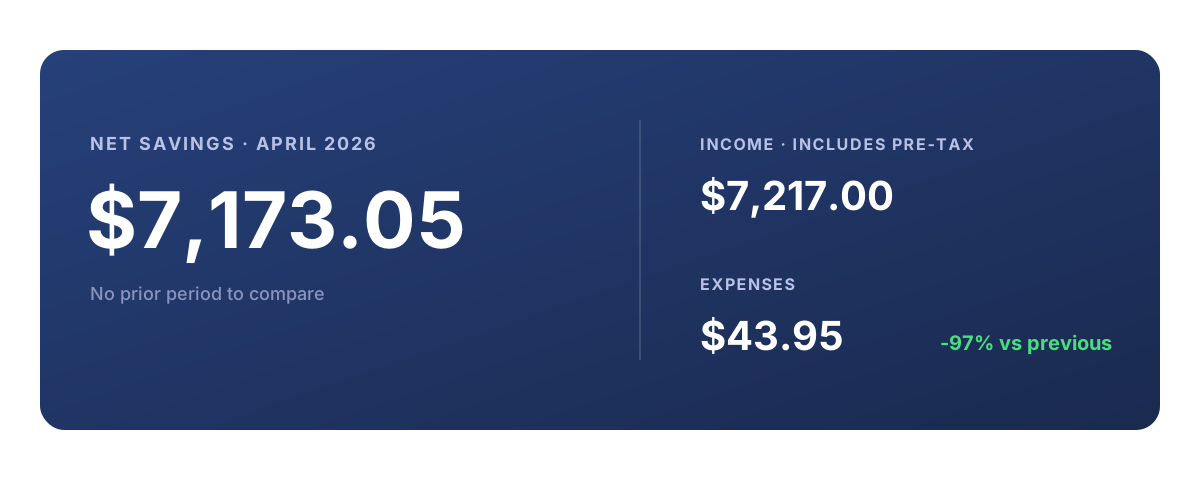
The large block underneath is your headline result for the window. One number leads: Net Savings, which is simply income minus expenses for the period. Flanking it are the two figures that produce it, Income and Expenses.
Each of the three carries a small percentage next to it. That is the change versus the equivalent previous window, so a Monthly view compares against last month and a Quarterly view against the previous quarter. A negative change on Expenses is good news; a negative change on Income is worth a look.
Worth a look: computed insights
Below the hero is a short insights strip. These are observations pulled straight from your own numbers, for example a category that jumped sharply versus last period, or a week that ran hotter than usual.
One thing to be clear about: this is plain math on your data, not a prediction engine. There is no AI and no auto-categorization anywhere in PrecisionSpend. Every insight is something you could calculate yourself, just surfaced automatically so you do not have to.
Spending Breakdown: where the money went
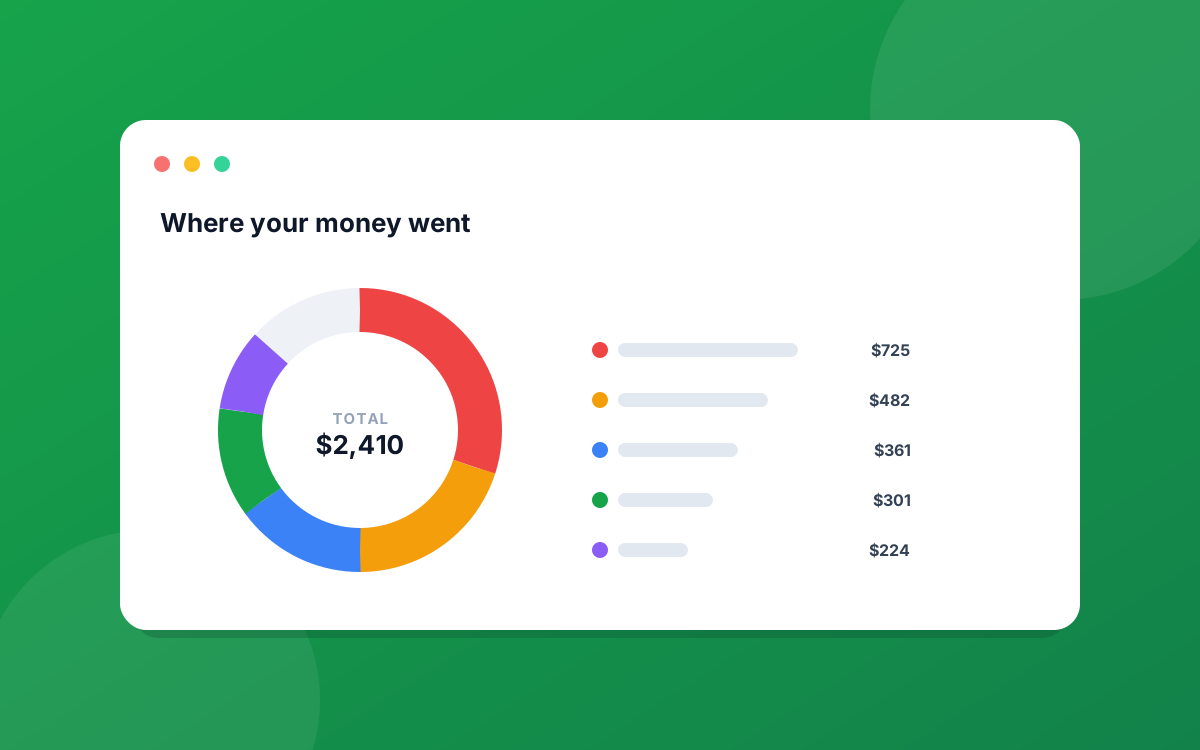
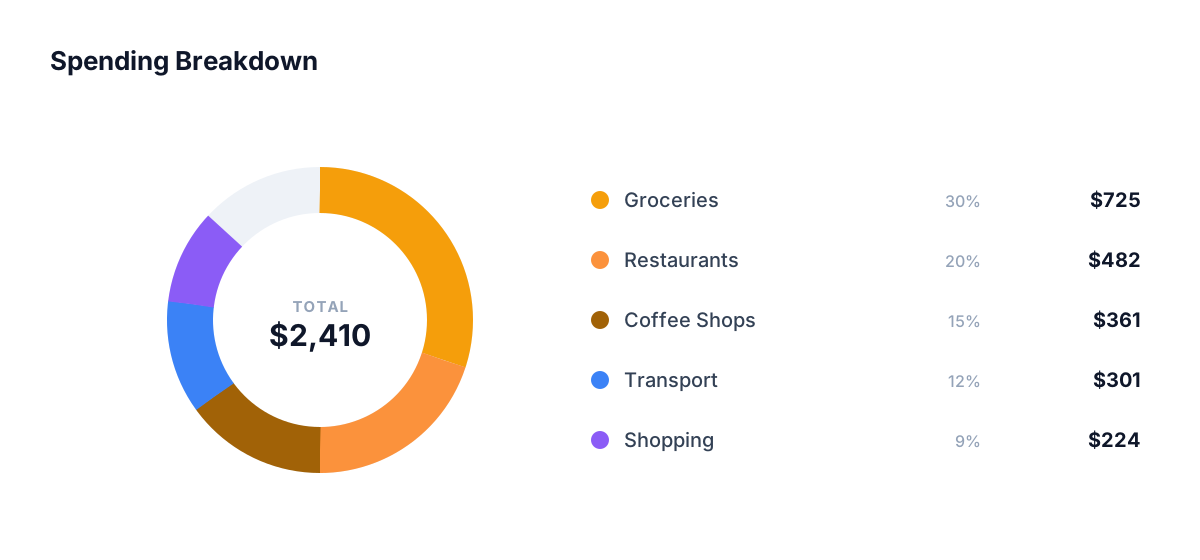
The donut chart on the left shows how your spending splits across categories. The total for the window sits in the center, and the legend beside it lists each category with its color, share as a percentage, and dollar amount.
If you prefer a ranked list to a donut, there is a toggle to switch to a horizontal bar view. Your choice is remembered on each device, so the dashboard keeps showing whichever you picked.
Spending vs Budget: are categories inside their limits?
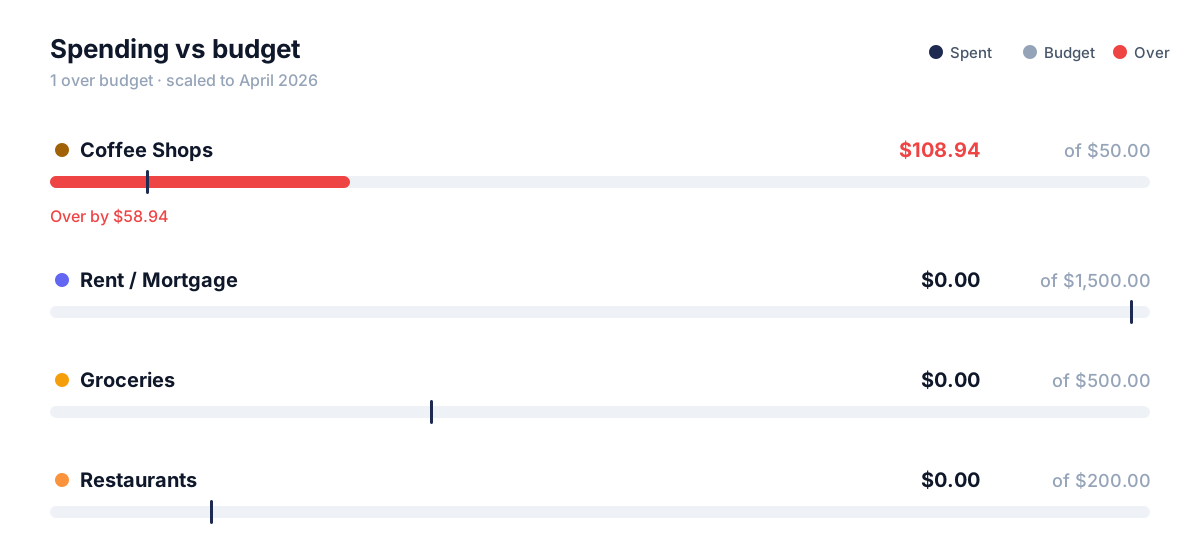
Next to the breakdown is a row-per-category list comparing what you spent against the budget you set. Each row shows the category name, a tidy "spent of budget" figure, and a thin progress bar underneath with a tick mark for the budget line.
A bar that crosses its tick is a category over budget for the window. This is the fastest way to see which limits you are about to blow past, without doing any arithmetic yourself. Set or change these limits any time from Budget Settings in the top bar.
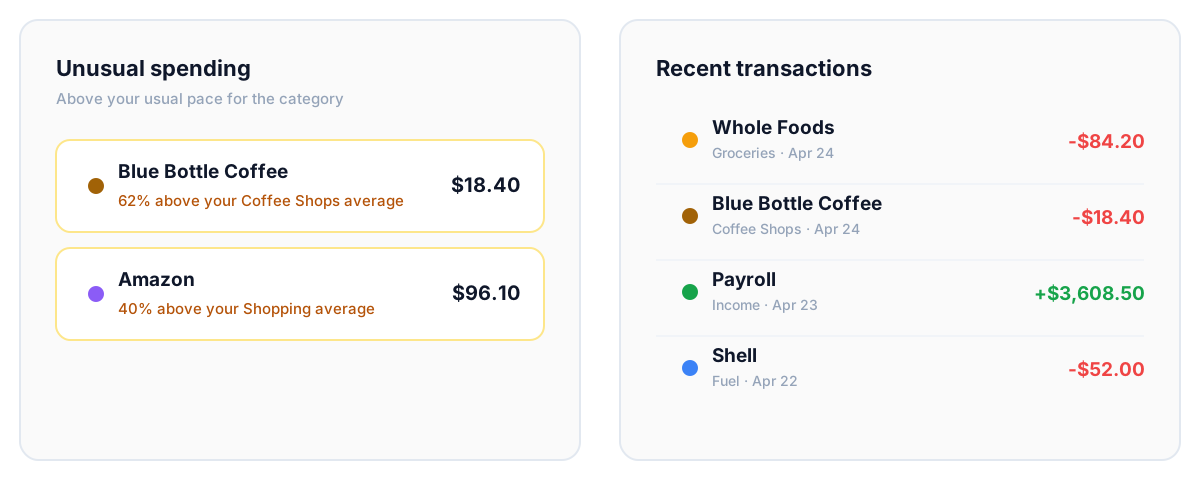
Unusual Spending and Recent Transactions
The bottom row pairs two widgets.
Unusual Spending flags individual transactions that came in well above the recent average for their category. It is a quick anomaly check, useful for catching a double charge, a price increase, or a one-off you forgot about.
Recent Transactions lists your latest entries across the whole ledger. It is a snapshot, not the full history, so there is a "View all" link to open the complete, searchable list when you need it.
Income: what is coming in
The income panel at the bottom lists your recurring sources, such as a salary or rent you collect, along with how often each one arrives. PrecisionSpend supports several cadences (weekly, biweekly, semi-monthly, monthly, quarterly, and yearly), so the projected income in your hero figure reflects how your real pay actually lands rather than a flat monthly guess.
One-off income, like a bonus or a freelance payment, is added as a transaction and counted on top of your recurring sources, so nothing gets double-counted.
Putting it together
Read the dashboard the way it is laid out:
- Check the window in the top bar.
- Read the on-track banner for the one-line answer.
- Look at Net Savings, then Income and Expenses, for the headline.
- Use the breakdown and budget bars to see where the money went and which categories ran hot.
- Scan Unusual Spending and Recent Transactions for anything that needs attention.
That is the whole screen. Every part is your own data, calculated in your browser, with nothing sent anywhere. Once the order clicks, a full read takes about ten seconds.
Have a question about a number that does not look right? Email us at hello@precisionspend.com and we will help you trace it.
Ready to put this into practice?
Start your free 30-day trial of PrecisionSpend. Full Pro features, no credit card required.
Get started free