The Spending tab on the Reports page is where you find out what is actually driving your expenses. Cash Flow tells you how much went out; Spending tells you where it went. Here is how to read it.
The four KPI cards
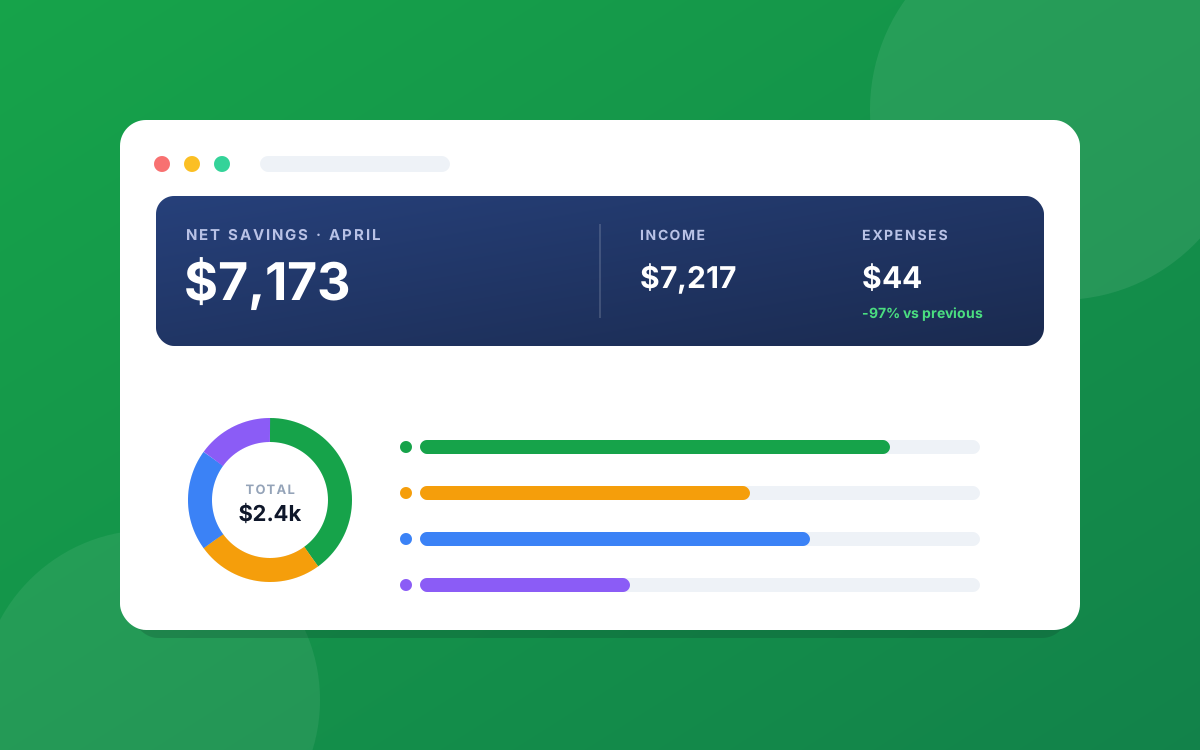
- Spent: total expenses for the window, with the change versus the prior period.
- Categories Used: how many different categories you spent across. A rising count can mean your spending is spreading out.
- Transactions: the number of expense transactions in the window.
- Top Category: your single largest spending category for the period, with its amount. This is usually the first thing worth looking at.
Where your money went
The main card breaks your spending down by category, and it has two views you can toggle between.
- Pie: the mix for the current window. Each slice is a category, and the legend beside it lists every category with its share as a percentage and its dollar amount, sorted largest first. This is the fastest way to see what dominates your spending.
- Over time: switches to a stacked bar per period, with each category as a colored segment. Use this to see how your category mix shifts month to month, for example groceries creeping up or a one-off category appearing and disappearing. It needs a few periods of history before there is a trend to show.
Category detail table
Below the chart is a precise table: every category with the amount spent, its percentage of total spending, and how many transactions made it up. It is sorted so your biggest categories are at the top.
The useful part: click any row and you land on the Transactions page already filtered to that category. So when the report shows a category running hot, you are one click from seeing the exact transactions behind it.
Change the window
Like the rest of Reports, the Spending tab follows the period switcher (Weekly, Monthly, Quarterly, Yearly) and the date range picker at the top. The breakdown, the table, and the KPIs all redraw to match whatever window you choose.
To pull the full list out of the app, use Export in the top-right for a CSV, PDF, or Excel copy.
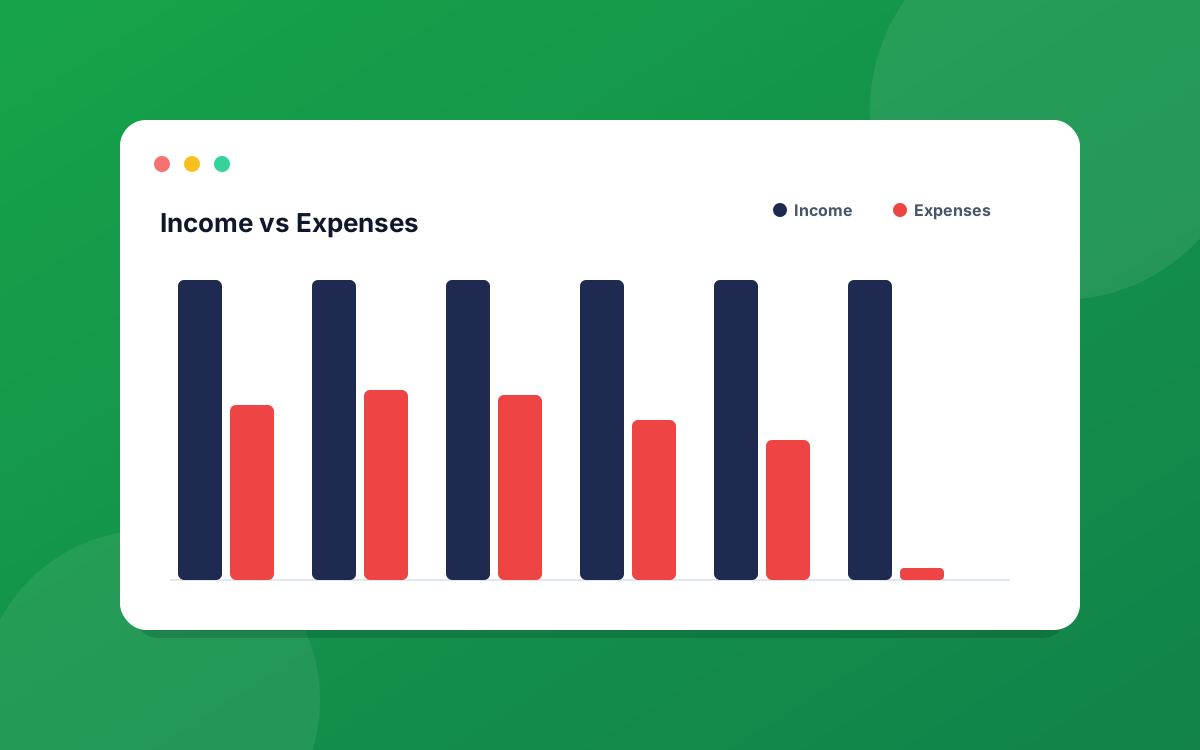
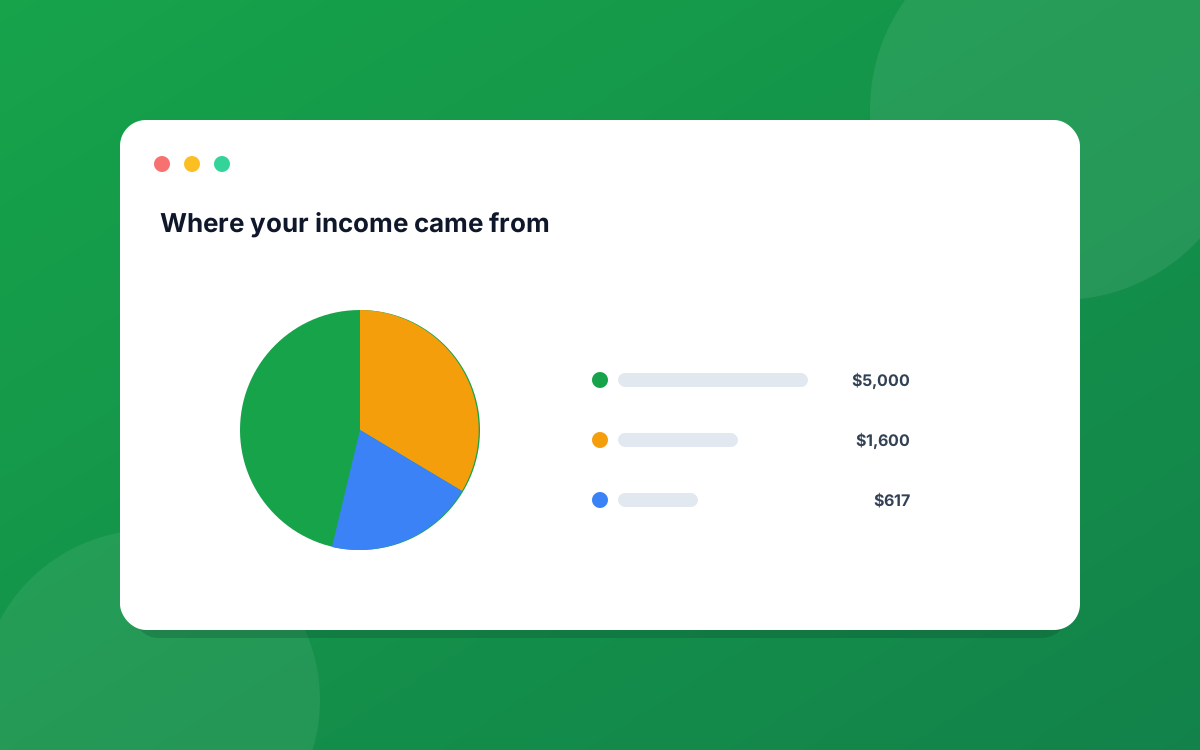
Related: the Cash Flow report covers income versus expenses, and the Income report shows where your money came from.
Ready to put this into practice?
Start your free 30-day trial of PrecisionSpend. Full Pro features, no credit card required.
Get started free