The Reports page opens on the Cash Flow tab, and for most people it is the one to read first. It answers the single most important budgeting question: across this period, did more come in than went out? This guide walks through every part of the tab.
What Cash Flow answers
Cash Flow is the money-in versus money-out view. Where the dashboard gives you a snapshot of right now, the Cash Flow report lines up each period side by side so you can see the trend. Use it to confirm you are running a surplus, and to spot the months where you are not.
The four KPI cards
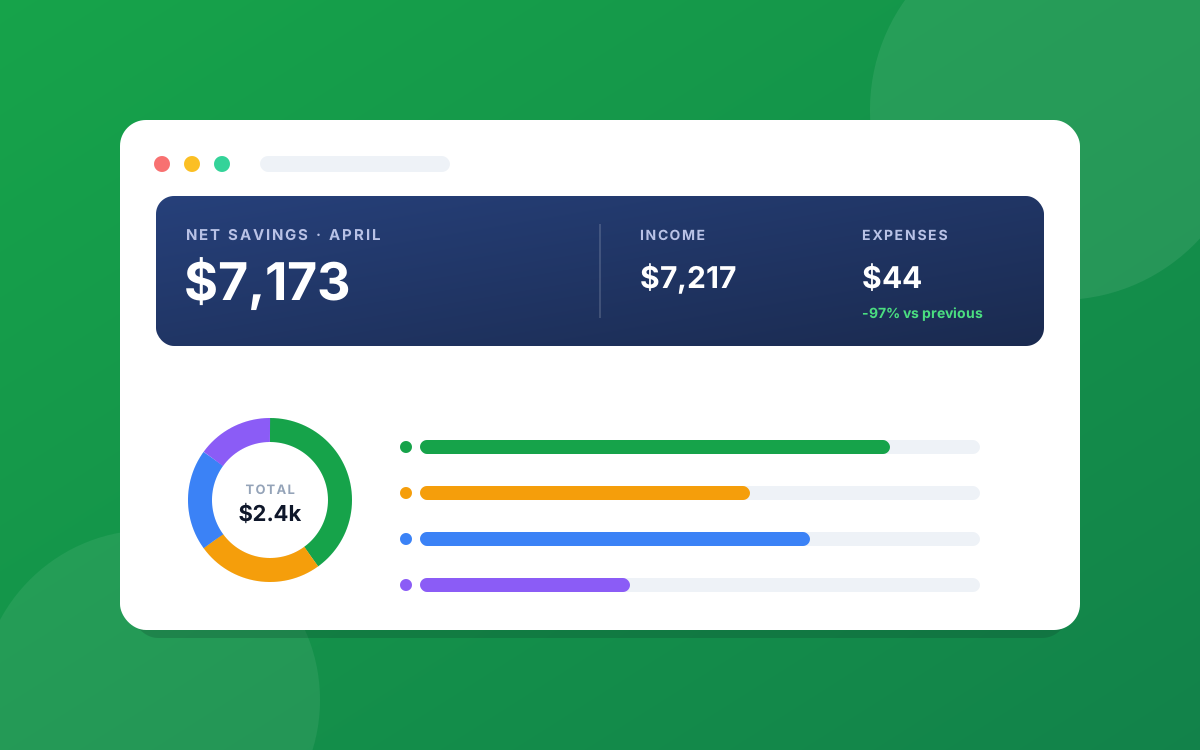
Across the top are four summary cards, each showing a headline number and how it compares to the previous period.
- Income: total money in for the window, with the percentage change versus the prior period.
- Expenses: total money out, also with a versus-prior change. A downward arrow here is good news.
- Net Cash Flow: income minus expenses. This is the number that matters most. Positive means you kept money; negative means you dipped into savings.
- Savings Rate: the share of income you held onto. Note this is calculated on gross, pre-tax income, so it reads lower than a rate based on take-home pay. We show it this way so it stays honest and comparable month to month.
Income vs Expenses chart
The first chart pairs two bars for each period: income in navy and expenses in red. Seeing them next to each other makes the gap obvious. A tall navy bar with a short red bar is exactly what you want.
One handy detail: tapping an expenses bar jumps you to the Transactions page filtered to that period, so you can see precisely what made up that month's spending.
Net Cash Flow chart
The second chart distills the first into a single bar per period: income minus expenses. It is the cleanest way to answer "am I building or burning?" at a glance. Bars above the line are surplus periods; a bar that drops below the line is a month you spent more than you earned.
Monthly Summary table
Below the charts is a row-per-period table with Income, Expenses, Net, the change in Net versus the prior period, and your Savings Rate for each. This is the same data as the charts, in exact figures, so you can read precise amounts and copy them out if you keep your own records.
Change the window
Everything on this tab is driven by the period switcher (Weekly, Monthly, Quarterly, Yearly) and the date range picker at the top. Switch to Quarterly and the buckets become quarters; pick a custom range and the charts and table redraw to match. If a number ever looks off, check the window first.
Want the underlying rows? Use Export in the top-right to download the data as CSV, PDF, or Excel.
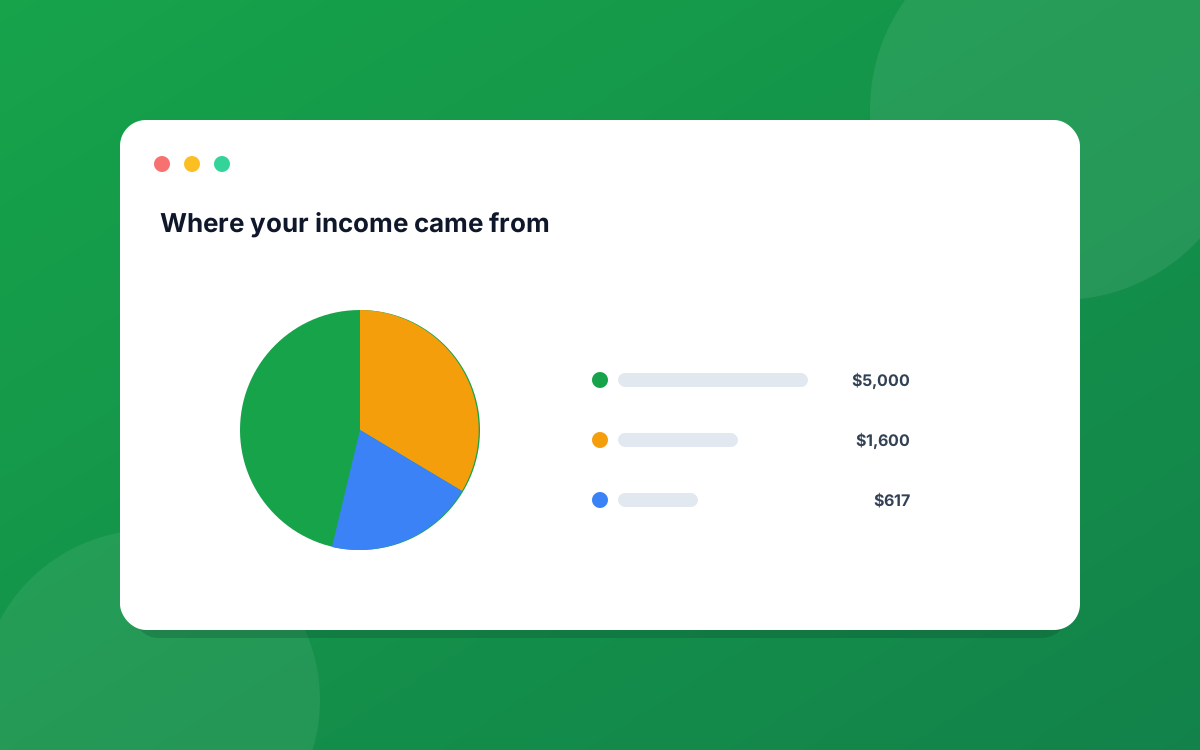
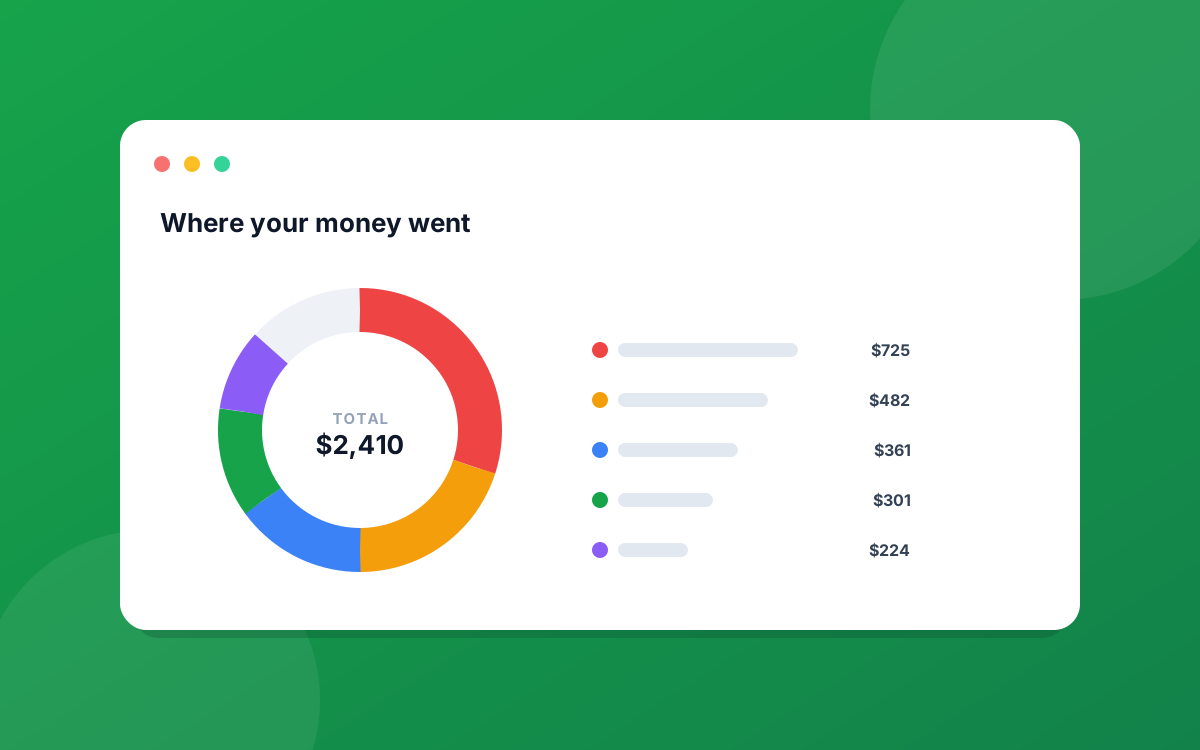
Next up: the Spending report breaks down where the money actually went, and the Income report shows where it came from.
Ready to put this into practice?
Start your free 30-day trial of PrecisionSpend. Full Pro features, no credit card required.
Get started free