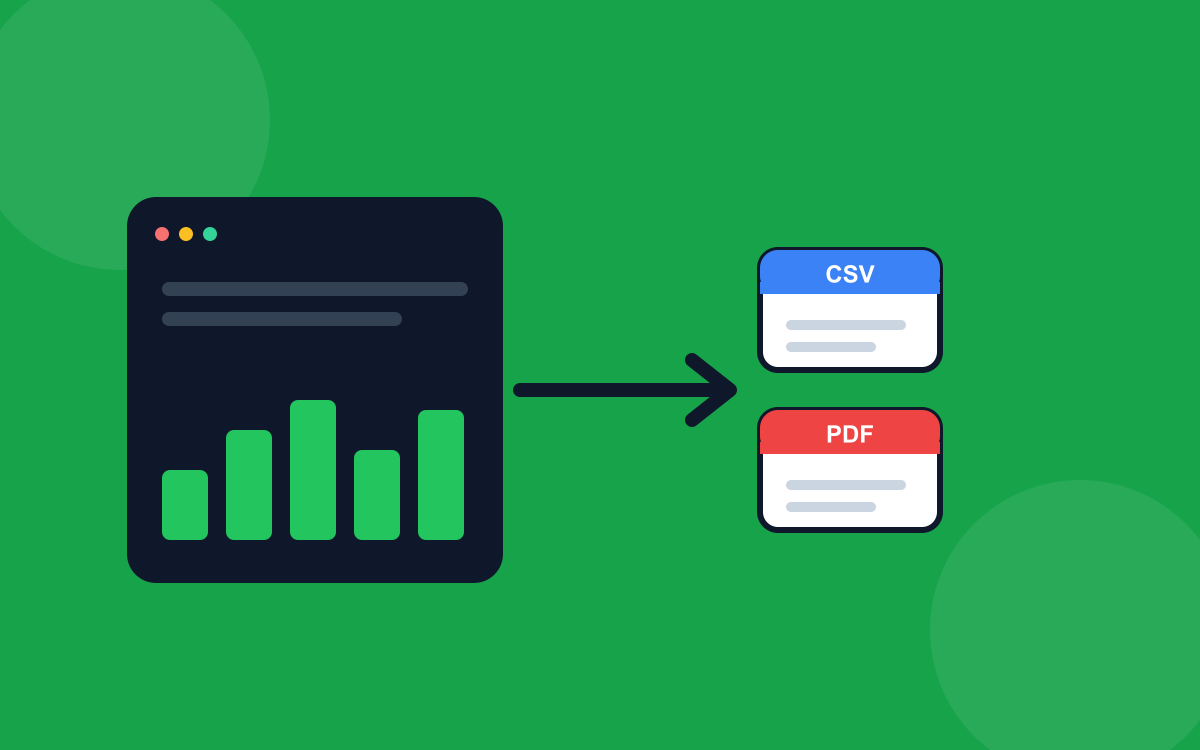
If you're switching to PrecisionSpend from another app, or just starting fresh with the last few months of your bank statements, importing transactions is usually the first big task. Here's how to do it cleanly, without ending up with duplicate or mis-categorized rows.
Before you start: get a clean CSV
Every bank exports a CSV from their online portal. Sign in to your bank, go to your transactions or statements page, choose a date range, and look for an Export or Download button. Pick CSV (sometimes labelled comma-separated values).
Common headings to expect: Date, Description, Amount, and sometimes Category or Memo. Don't worry if the columns are named differently. PrecisionSpend lets you map them in the next step.
Open the importer
From the dashboard, click the Import button in the top header. The import dialog opens. Drag your CSV in, or click to browse.
Your file is parsed in your browser, so nothing is uploaded yet. You'll see the first few rows so you can confirm it picked up your data correctly.
Map your columns
PrecisionSpend will try to auto-detect which column is the date, which is the amount, and so on. If it guessed wrong, click the dropdown above each column and pick the right type. You only need to map four:
- Date: when the transaction happened.
- Description / Merchant: who you paid or who paid you.
- Amount: the value. Negative usually means money out.
- Category (optional): if your bank already classified the transaction. PrecisionSpend will try to match it to one of your existing categories.
Your mapping is saved per bank, keyed by the column headings. Next time you import from the same bank, the mapping is filled in automatically.
Review and confirm
On the final step you'll see a preview: how many rows will be added, how many were skipped as duplicates, and which ones couldn't be parsed. Hover any row to see the original CSV line.
Duplicate detection compares date, amount, and description. If you've imported part of this range before, the duplicates are skipped automatically, with no extra cleanup.
Click Import and you're done. The transactions appear in the dashboard immediately.
Where to find them next
Imported transactions land in the Transactions page (left sidebar), categorized using the mapping rules. From there you can edit categories in bulk, add notes, or move misclassified rows.
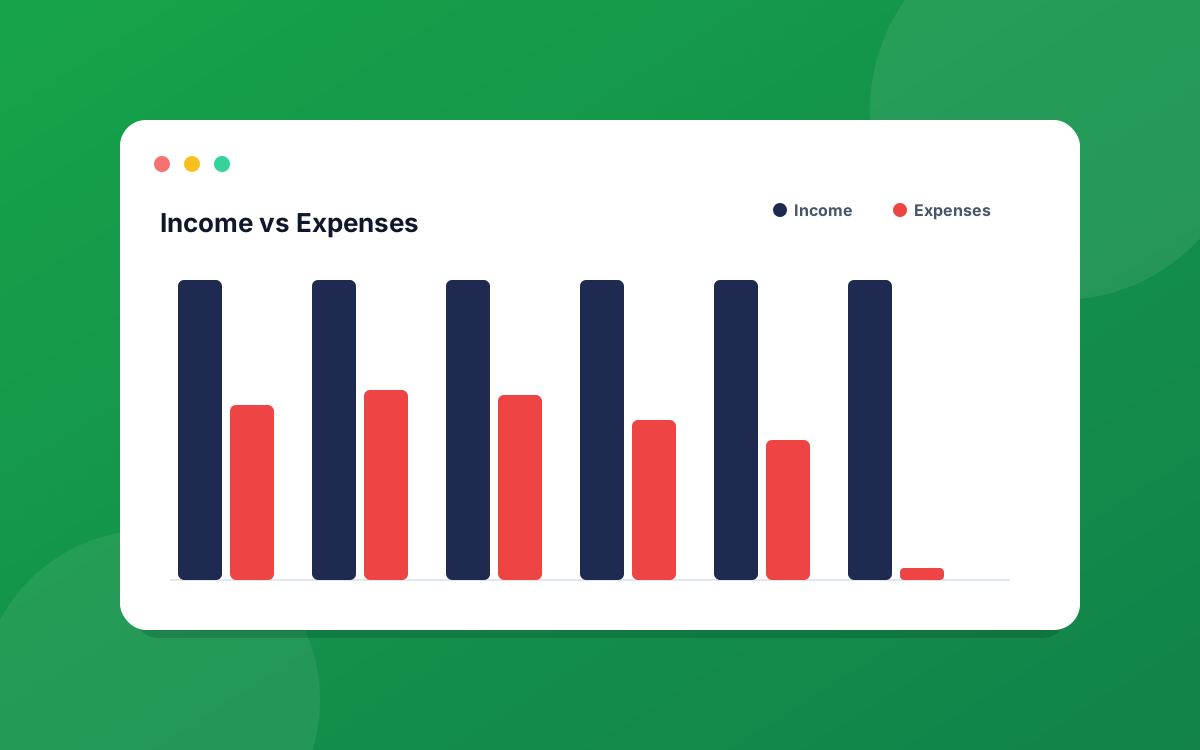
If you imported a year of history at once, scroll the Reports page. Your trends, top categories, and net cash flow are now populated from the imported data.
A few things worth knowing
- Free tier exports the last 30 days (CSV) or 90 days (PDF). The full import history stays in your account; only the export window is gated.
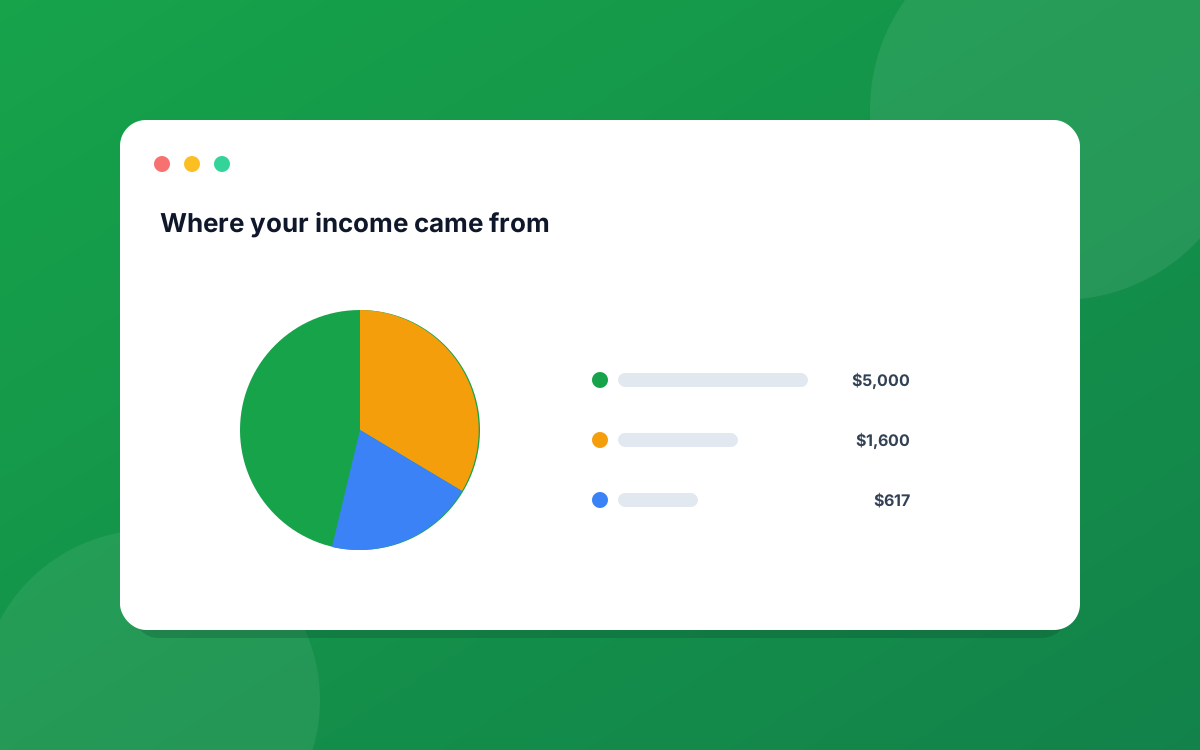
- Recurring income sources don't get auto-detected from your CSV. After importing, add your salary and other recurring sources in the Income panel so your forecasts work.
- If your bank exports two CSVs (debit and credit cards, say), import them one at a time. PrecisionSpend handles them separately and dedupes correctly.
Questions or a CSV format we don't recognize? Drop us a line at hello@precisionspend.com and we'll add support.
Ready to put this into practice?
Start your free 30-day trial of PrecisionSpend. Full Pro features, no credit card required.
Get started free